
Sharing Your Booking Links
An extremely common use case among scheduling users is to share a link that is directly connected to a service or a provider or even both of them. Such links can be embedded into websites, profile pages, email templates etc and will help clients proceed to a booking without having to specify what or who they are booking for. Easy!Appointments already supports this feature and in this post you will find out how to easily get the links you are looking for.

How Does This Work?
Dedicated booking links is something administrator users can only find at the backend section of the application. The places that offer this information are the services and users management pages.
Pre-Selecting The Service
While being at the services page you can filter and select a service from the left column of the page, where all the services are listed.
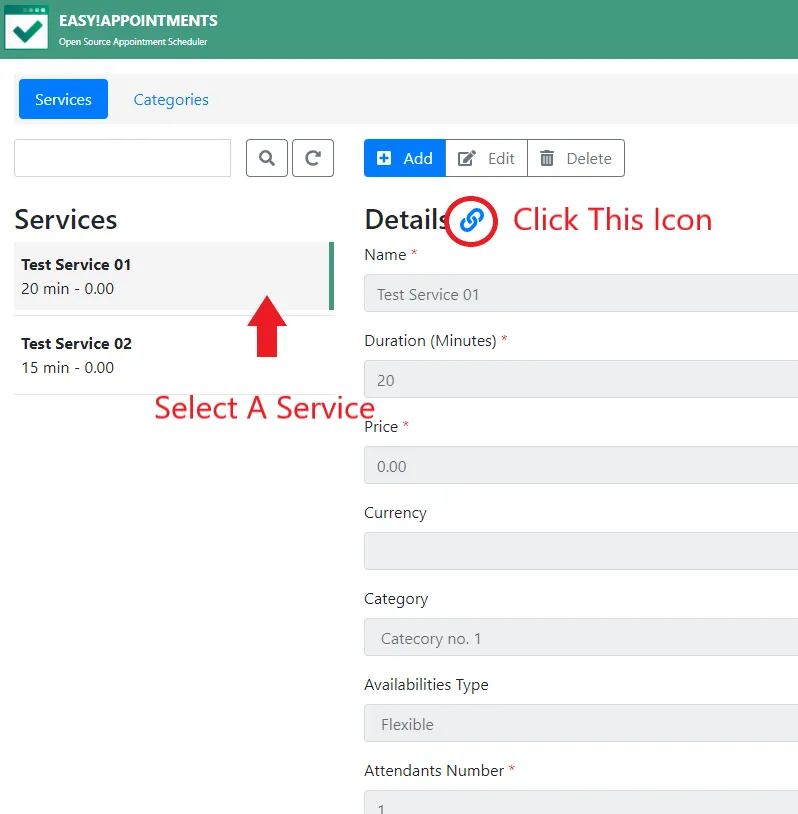
The information of the service will be displayed on the central form, along with a hyperlink icon at the top. This icon links to the booking page with the service pre-selected, no matter what its original position might have been.
Of course for this to work the service must have already been assigned to a provider that can serve, which also makes it eligible for new bookings.
You can share this link anywhere you would like the service to be pre-selected as the first option for new booking sessions.
Pre-Selecting The Provider
Similarly to the services page, you can get the dedicated booking URL of a provider by going to the users page and selecting a provider from the left column list of the page.
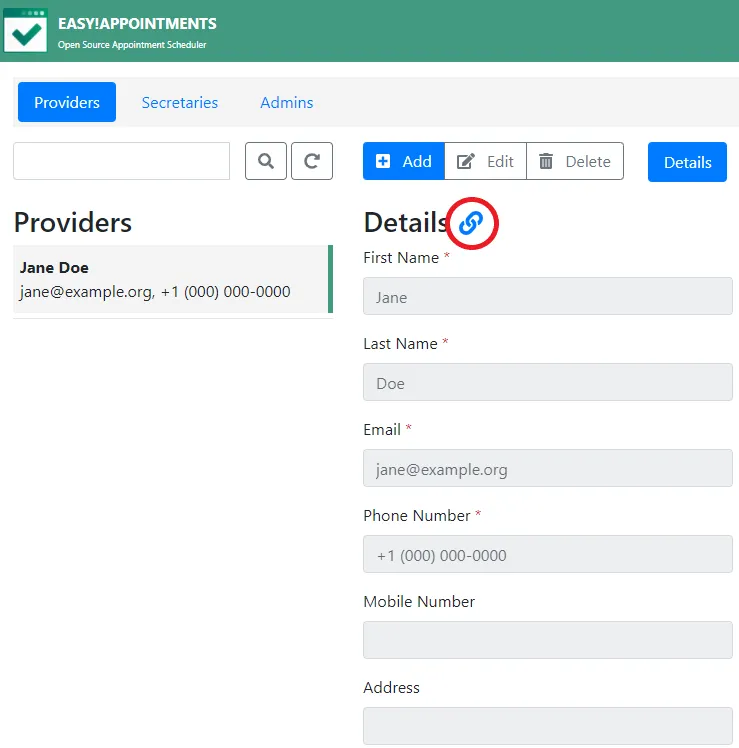
This link will automatically pre-select a service that can be served by the selected provider and also pre-select the provider option for all new booking sections.
Of course for this to work the selected provider must have at least one service assigned, which will also make them eligible for new bookings.
Pre-Selecting Both Service And Provider
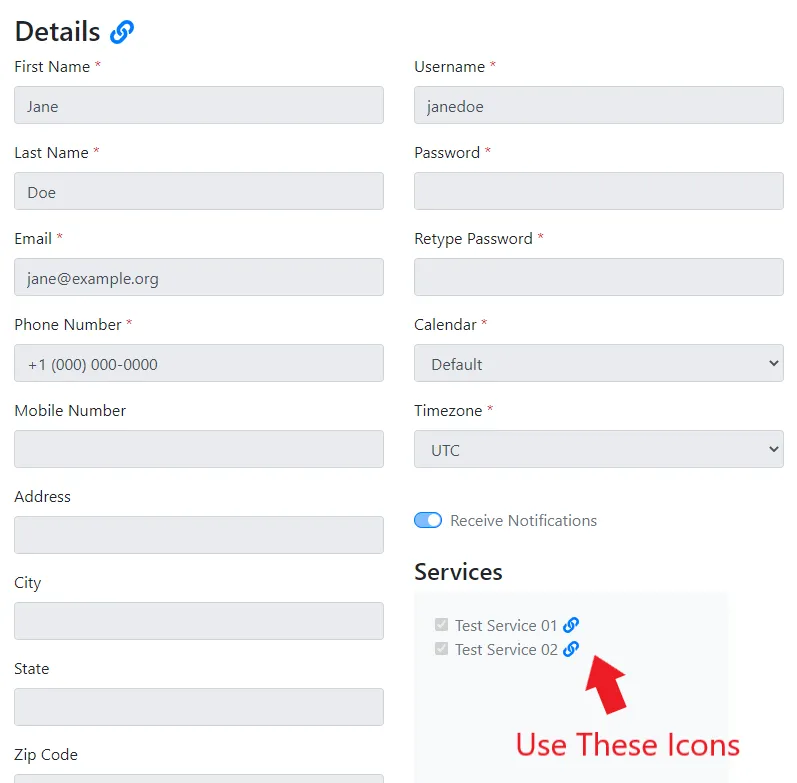
Finally, you may also share links that pre-select both the provider and the service, in case you need the selection to be more specific. This can only happen in the users management page at the moment and can be found service assignments list box of the providers tab.
Going Premium
Did you read this article, but you’re still not sure on how to proceed?
Reach out to info@easyappointments.org and have an expert take care of everything for you in zero time.
Get your free quote and get started now!
Rather not run it yourself?
Managed Hosting runs Easy!Appointments on our servers or manages it on yours, with updates, backups and a reply from the core team within one business day. White label, support sessions and custom work are in the services.
Get Managed Hosting